1 配置ClaudeCode的bash执行器路径
在%USERPROFILE%/.claude/setting.json中追加以下配置想
json%USERPROFILE%/.claude/setting.json
{
  "env": {
    "CLAUDE_CODE_GIT_BASH_PATH": "D:\\Git\\bin\\bash.exe"
  }
}
2 配置conda环境(如果有conda环境的话)
以管理员模式打开powershell,输入一下命令激活bash环境的conda:
shell
conda init bash3 配置Git Bash
3.1 配置vscode的终端为Git Bash
进入vscode的json配置中添加这样的配置项:
json
// Windows: 集成终端默认为 Git Bash
"terminal.integrated.defaultProfile.windows": "Git Bash",
3.2 配置Intellij产品的终端为Git Bash
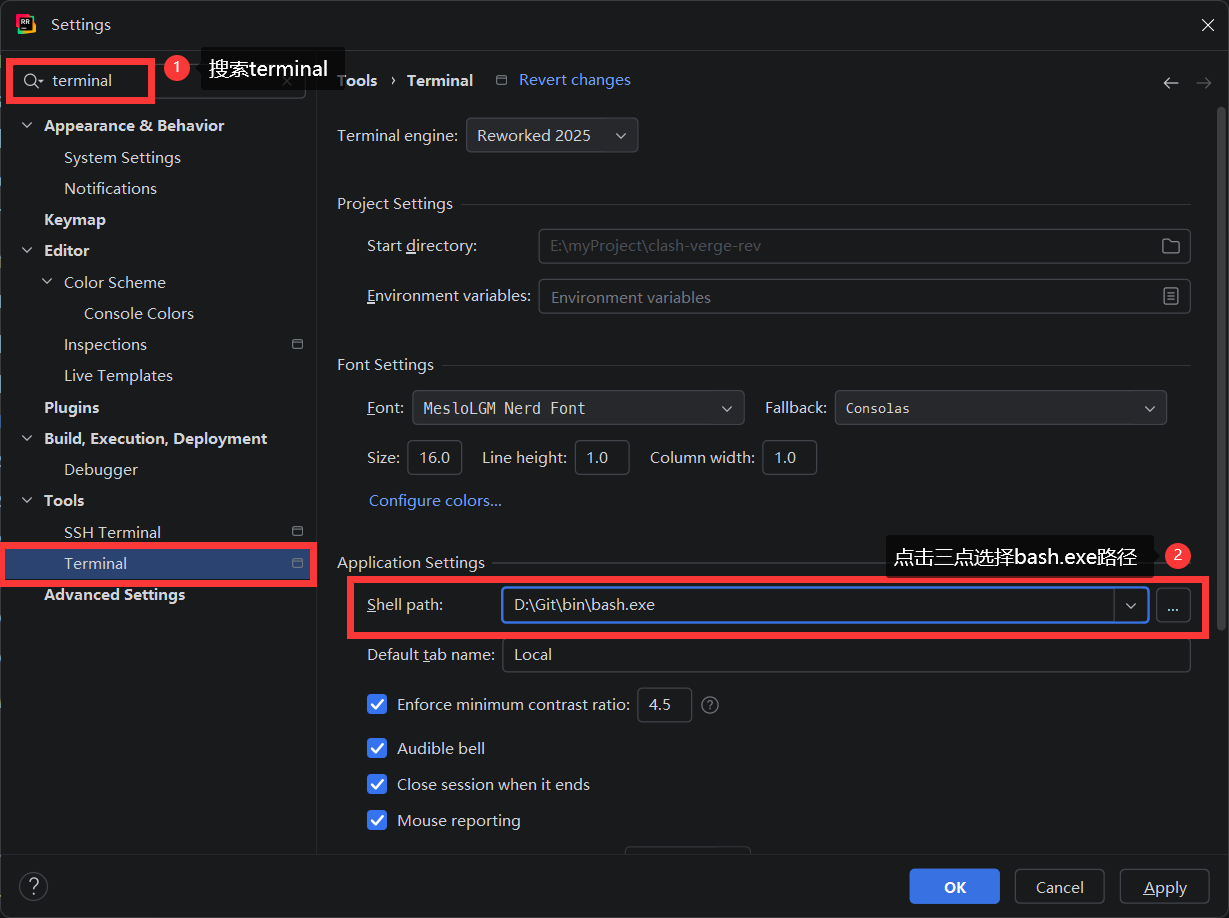
3.3 使用oh-my-posh美化Git Bash
oh-my-posh的安装请看https://ohmyposh.dev/docs/installation/windows
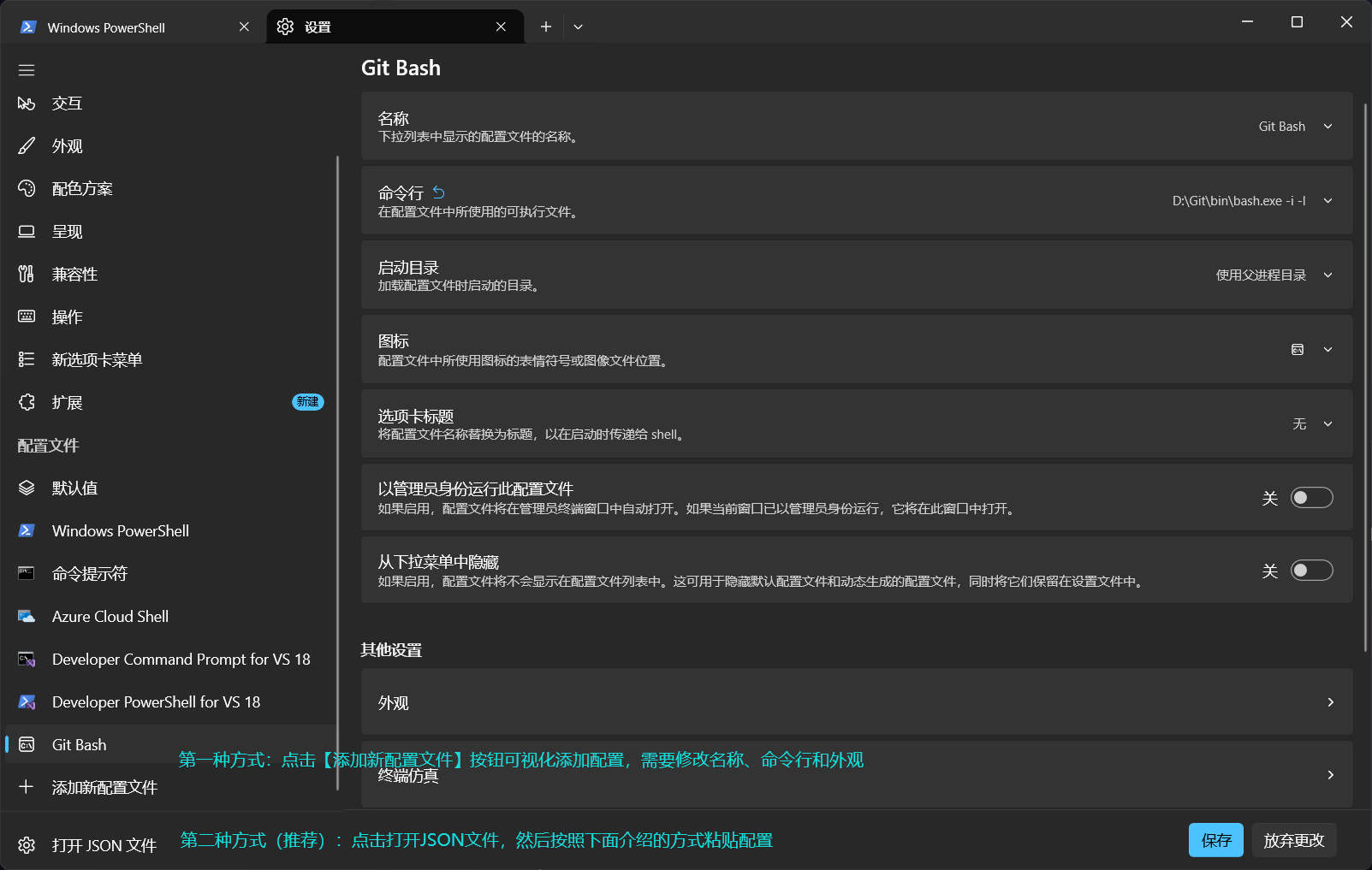
找到profiles属性,内部一个list属性,list属性是一个数组,把以下内容粘贴到list数组的末尾。
json
{
  "commandline": "D:\\Git\\bin\\bash.exe -i -l",
  "font": {
    "face": "MesloLGM Nerd Font"
  },
  "guid": "{97a96799-057a-4499-9a53-c278886f1e99}",
  "hidden": false,
  "name": "Git Bash"
}
注意git bash的路径更换
把
D:\\Git\\bin\\bash.exe更换为你本地的bash.exe的文件路径
-i和-l是什么命令?
-i表示以交互的方式运行bash.exe,让bash.exe不会运行之后立即关闭-l表示在启动前读取个人配置文件,配置文件加载顺序:- /etc/profile(全局配置)- /.bash_profile - ~/.bash_login - ~/.profile
其中~是用户文件夹的简写
在文件管理器中输入%USERPROFILE%并回车进入到用户文件夹:
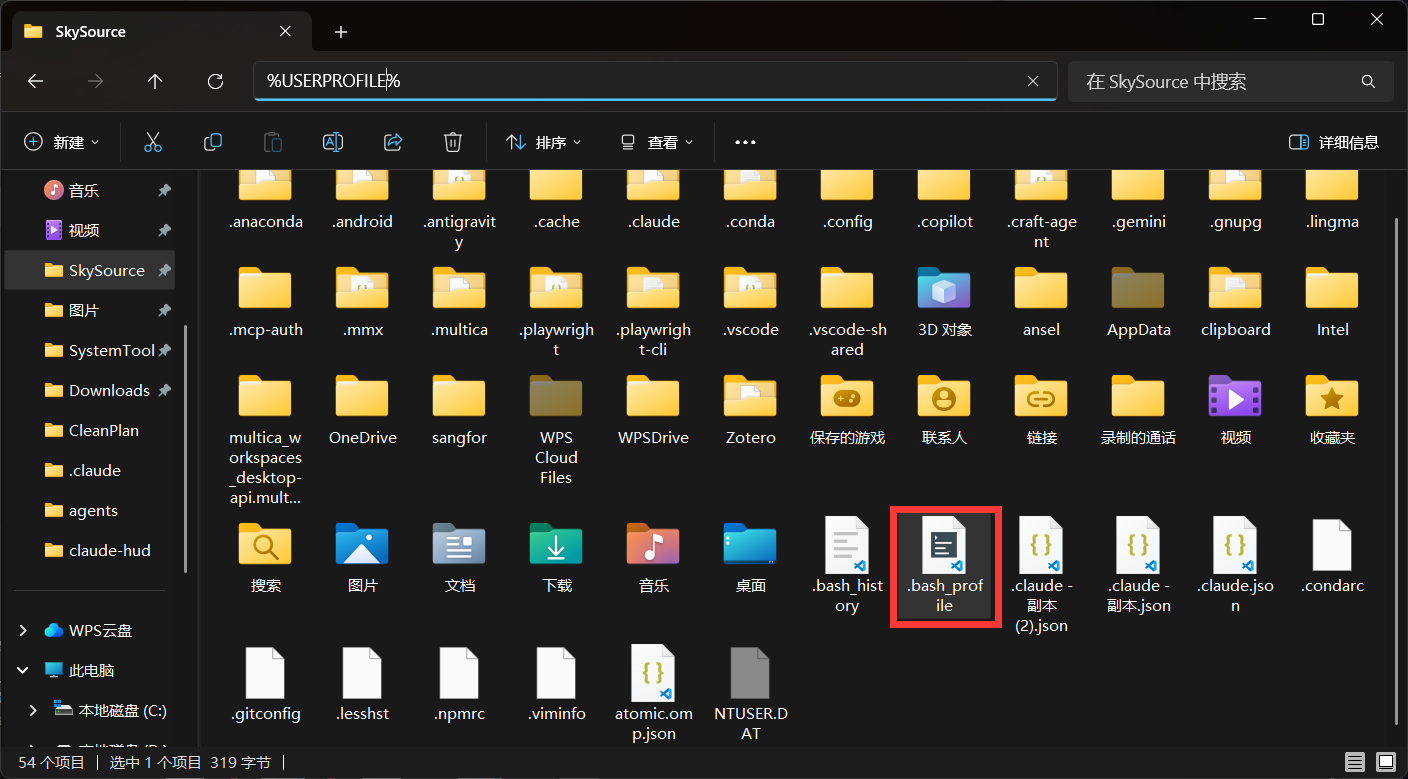
如图所示创建.bash_profile(有则追加下面的内容),并加入如下内容:
json
eval "$(oh-my-posh --init --shell bash --config ~/atomic.omp.json)"其中~/atomic.omp.json是存放在自己电脑上的主题文件,你可以从 https://ohmyposh.dev/docs/themes选择你喜欢的主题。